
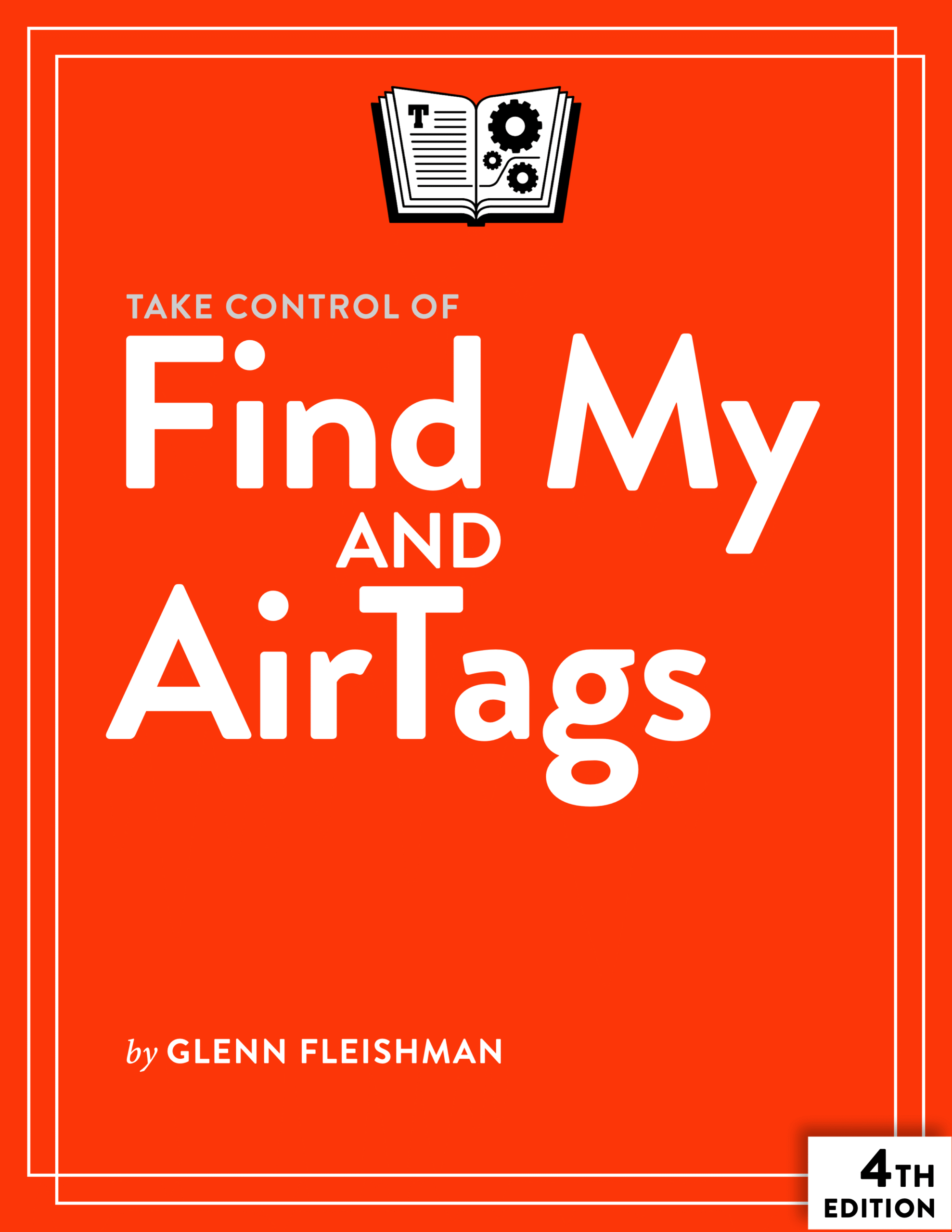
Apple has matured Find My into a robust ecosystem that encompasses people, hardware, and compact trackers. Along the way, Find My has baked in increasing amounts of privacy protection to ensure that this level of real-time tracking isn’t used for stalking or other crimes. Take Control of Find My and AirTags takes you through the many parts of the Find My world so you can configure and refine how you and your stuff is tracked and shared.
You can use native Find My apps on an iPhone, iPad, Mac, or Apple Watch, or (to a limited extent) at iCloud.com, to track any of those devices or the people carrying them, as well as to see where AirTags and third-party Find My network items are, such as a tag in your car on in a backpack. You can even securely and temporarily given an airline tracking info for an AirTag in your location so you know when it arrives with you at a destination—or help them find it when it’s gone astray.
This book looks at the three different kinds of tracking available from Apple:
- People: Learn how to share your location safely, follow others who let you, and send and receive notifications about arrivals and departures. (Also, prevent being tracked when you don’t want to be.)
- Devices: See the whereabouts of your and Family Sharing group members’ devices and audio hardware. Get to know the ins and outs of enabling Find My and taking remote actions, from playing a sound to wiping your data from a device.
- Items: Find out how AirTags make use of the crowdsourced network of other people’s Apple devices to help you find a lost or forgotten purse, backpack, or even car, and about the many third-party devices licensing the technology from Apple. Learn how to share your items with up to five other people.
While the book focuses on the latest Apple operating systems: iOS 26/iPadOS 26, macOS 26 Tahoe, and watchOS 26, it looks back as far as iOS 17/iPadOS 17 and macOS 14 Sonoma for nearly every feature—and sometimes back even years before those releases—so you can best use your mix of Apple devices of all vintages.
Get an overview into how Find My works:
- Turn on tracking on every device: iPhone, iPad, Mac, and Apple Watch.
- Find out the difference between device-based Find My tracking and the Find My network.
- Figure out whether your Apple or Beats audio hardware can be tracked just over Bluetooth nearby or also via the Find My Network.
- See the place in Apple’s ecosystem for third-party Find My tracking from nearly a dozen companies that make bike, bag, and general stuff trackers, some with extra alarms.
- Understand Activation Lock, which protects devices from being reused even if someone has erased them, and Find My Lock, which keeps Find My items from being reset and taken over.
- Discover buried controls for configuring exactly how Find My updates your device’s location, including when power runs low.
- Develop an understanding of your Apple Watch’s three distinct Find My features to use them effectively on the go.
Learn about sharing your location and that of your devices and items:
- Get to know presence, the way you define which of your devices indicates where you are to other people.
- Use Messages to share your location for an hour, a day, or indefinitely.
- Start sharing AirTags and other items with up to five other people.
- Learn how to share an AirTag or other Find My item with an airline to help them locate your baggage.
Get help finding missing items and devices:
- Lost a single earbud? Apple may have you covered by playing a sound out of it or providing nearly pinpoint tracking.
- Experience the joy of playing a sound over the internet or nearby to help find a missing device or item.
- Learn about the capability to track an iPhone or iPad even after it’s been erased!
- Help family members find lost and stolen gear through Find My’s Family Sharing support.
- Understand how to use Precision Tracking when you’re close to a missing object.
Be alerted to and block unwanted tracking:
- Learn about Apple’s efforts and those of the broader industry to prevent Find My from being used for stalking and unwanted tracking.
- Spot Google and Apple trackers near you or traveling with you that aren’t yours and aren’t Apple Find My items shared by others with you, including audio alerts and warnings on your iPhone, iPad, or an Android device.
- Control and monitor the way you let others track your whereabouts.

About Glenn Fleishman
Take Control Books Executive Editor Glenn Fleishman spent 30 years writing for publications like The Atlantic, Fast Company, The Economist, The New York Times, Macworld, and TidBITS. Glenn now focuses his time on Take Control Books, Six Colors (as a columnist), and his own micro-publishing endeavor, Aperiodical, where he writes books about type, printing, comics, and language history, like Six Centuries of Type & Printing and How Comics Are Made. You can find Glenn on Mastodon and Bluesky. Reach him by email at glenn@glennf.com.
Reviews
There are no reviews yet.