Take Control Books
Skip to navigation Skip to content
Take Control Books

Expert Advice from Leading Tech Authors

Returning customer? Please log in:

  •  

  • Catalog
  • About
  • Authors
  • FAQ
  • Blog
  • Contact
  • Account
  • Library
  • Our Stance on AI
  • Log In
  • Catalog
  • About
  • Authors
  • FAQ
  • Blog
  • Contact
  • Account
    • Log In
    • Account Help
    • Account Details
  • Library
  • Our Stance on AI
  • $0.00 0 items
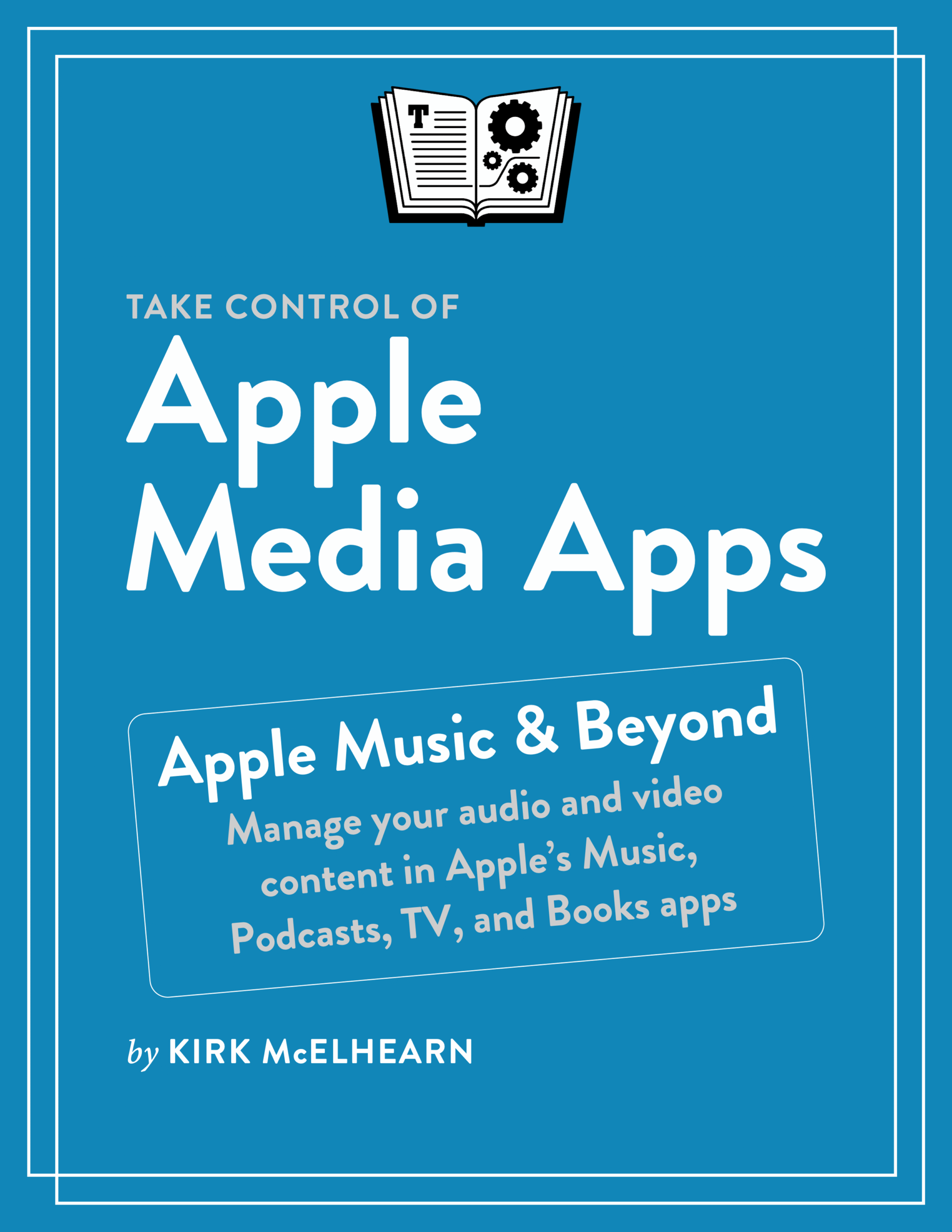
Take Control of Apple Media Apps cover
ISBN:978-1-990783-63-0
Version:1.1
Pages:244
Size (PDF):8.1 MB
Date:October 30, 2025
Discover Apple's Music, TV, Podcasts, and Books apps

Take Control of
Apple Media Apps

Kirk McElhearn

Are you bewildered with the apps that replaced iTunes on your Apple devices? Befuddled by Apple Music? Confused about whether or how to sync your media to the cloud? Wondering how to view movies and TV shows on each of your devices? Wishing for a way to organize your podcasts? In this book, Kirk McElhearn explains not only how Apple’s media apps work, but also how normal people can make the Music, TV, Podcasts, and Books apps do just what they want.

All Take Control books are delivered in two ebook formats—PDF and EPUB—and can be read on nearly any device. We do not sell printed books.

Clear
Add book + TC Premium to cart
Download Free Sample
  • Description
  • What’s New
  • Table of Contents
  • Blog
  • Reviews (0)

Back in 2019, Apple replaced iTunes for Mac, iOS, and iPadOS with three apps—Music, TV, and Podcasts—with audiobooks handled by the Books app. Take Control of Apple Media Apps is your guide to this post-iTunes world. Covers macOS 15 Sequoia, iOS 18, and iPadOS 18 or later (including macOS 26 Tahoe, iOS 26, and iPadOS 26), plus Apple Watch, Apple TV, and HomePod.

Expanding on his earlier title Take Control of macOS Media Apps, Kirk McElhearn shows you how to manage your music, videos, podcasts, and audiobooks on all your Apple devices. Whether you just want to play your media, or you want to go deeper with special features like Apple Music, Genius, Shuffle, Playing Next, and iTunes Match, this comprehensive guide has the answers you need.

Kirk also looks at various ways of bringing audio and video into Apple’s media apps, tagging music and videos so you can find them more easily later, creating playlists, sharing your library over a home network, and accessing your media libraries on your iPhone, iPad, Apple Watch, Apple TV, or HomePod.

Bonus! This ebook comes with a coupon for $7 off Rogue Amoeba’s Airfoil app.

Here’s just a taste of what the book covers.

Music

  • Play Music: Learn the basics of playing audio (and even music videos) in the Music app. You’ll also learn about making quick playlists with Genius and Playing Next, the best ways to search for the music you want to hear, how to stream music to other devices in your home, and how to view lyrics while tunes play.
  • Stream Music: Use Apple Music, a paid service, to listen to any of 100 million tracks. Or listen to live broadcasts from Apple Music Radio (including Apple Music 1, Apple Music Hits, Apple Music Country, and other live radio stations).
  • View Your Music: Learn how to view your music library and work with contextual menus in the Music app.
  • Organize Your Music: Make a simple playlist of romantic songs, workout songs, or whatever theme you like. You’ll learn how to create smart playlists that, for example, comprise only your 5-star faves or only tunes you haven’t heard recently, and how to transfer playlists to your Apple Watch. You’ll also find help with operational issues like eliminating duplicates from your music library.
  • Store Your Music Library in the Cloud: What are the pros and cons of using the Sync Library setting to store your music in the cloud? How do Music and iTunes Match figure out whether to upload your music when that setting is enabled? How can I make sure I have all the media I want on each of my Apple devices? You’ll get answers to these questions and more.
  • Tag Your Music: Tags are bits of information (also known as “metadata”) that can describe your media. Learn which tags to bother changing, the best ways to add lyrics and album art, how to rate songs with stars, favorites, or both, and what other types of metadata you can use.
  • Meet Apple Music Classical: Apple Music Classical is a special app for iPhone that helps lovers of classical music enjoy their favorite composers, performers, and pieces without the limitations of the standard Music app.

TV, Podcasts, and Books

  • View Movies and TV Shows: Use the TV app to watch videos, including those purchased, rented, or streamed from Apple and those you add yourself.
  • Listen to and Watch Podcasts: You’ll be sampling and subscribing to podcasts in no time with Kirk’s advice, plus you’ll pick a method of syncing podcast episodes to your iPhone or iPad and even learn about creating your own podcast station.
  • Listen to Audiobooks: Discover how to download and play audiobooks in the Books app, and how to manage your audiobook library. (Note: This book does not cover using ebooks in Books.)

All Media Apps

  • Buy or Rent Media from Apple: You can buy music, TV shows, movies, books, and audiobooks directly from Apple—and rent movies—from within the various media apps. Find tips on shopping for media, and get advice on sharing your purchases with family members and among your various Apple devices.
  • Manage and Share Media Files: Whether you want to casually share a playlist from your laptop when visiting a friend or you want to make all your media available on all your home’s computers, you’ll find out how Media Sharing and Home Sharing make sharing possible. You’ll also learn how to manage massive media libraries and store media files on external drives.
  • Put It on Your Wrist… Enjoy your favorite music, podcasts, and audiobooks using your Apple Watch.
  • …or on a Big Screen: Use your Apple TV not only for TV shows and movies but also for music, and work with a shared library.

Kirk McElhearn

About Kirk McElhearn

Kirk McElhearn writes about Apple hardware and software, books, music, and more. As a Senior Contributor to Macworld for more than 15 years, he wrote hundreds of articles, including the Ask the iTunes Guy column. He is a regular contributor to The Mac Security Blog, the Literature & Latte blog, where he writes about their writing app Scrivener, and TidBITS, as well as several other websites and magazines. He is co-host of several podcasts, including The Next Track, a podcast about how people listen to music today, and Write Now with Scrivener. Visit his website Kirkville.
What’s New in Version 1.1

Version 1.1 of this book was released following the introduction of macOS 26 Tahoe, iOS 26, iPadOS 26, tvOS 26, and watchOS 26. As you can see, Apple has rationalized the version numbers of their operating systems, choosing to name them after the coming year, like car model years in the United States. This makes it easier to understand which version of Apple’s operating system is current, and simplifies the way we discuss these operating systems.

This year brings a new interface style to Apple’s operating systems. Liquid Glass affects many parts of every app, and, as Apple says, “This translucent material reflects and refracts its surroundings, while dynamically transforming to help bring greater focus to content, delivering a new level of vitality across controls, navigation, app icons, widgets, and more.” Unfortunately, this also makes it difficult to work with some interface elements because they are blurry and hard to read. As such, I use the Reduce Transparency setting for all the screenshots in this book. You can enable this in Settings > Accessibility > Display (or Display & Text Size) on your various devices.

Apple has also moved around or changed a number of interface elements, notably on the Mac version of the Music app, where play controls and information about currently playing tracks have been moved from the top of the app to a floating bar at the bottom. This has been done in an attempt to align the way this app presents on Macs, iPhones, and iPads. This said, the content section of these apps—the main section where you see your music—hasn’t changed at all.

Here are the new features I cover in this version of the book:

  • AutoMix: This new feature goes beyond the existing crossfade feature, which smooths segues between tracks, and “dynamically transitions between Apple Music subscription content for a seamless listening experience.” This only works when playing content from Apple Music, whereas Crossfade works with any music in your library. I discuss this in “Shuffle and Repeat Music on an iPhone.”
  • Lyric translation and pronunciation: You have long been able to view lyrics on your device for many tracks in the Apple Music library. You can now view translations and pronunciation for some music not in your language. See “View Lyric Translation or Pronunciation on Your iPhone or iPad.”
  • Pinned Favorites: You can now pin up to six playlists, albums, artists, or songs at the top of your Apple Music library. See “Pin Favorites to the Top of the Library.”
  • Playlist Folders: Long available for Mac, you can now organize your playlists in folders on your iPhone or iPad. See “Organize and Manage Playlists.”
  • Home Screen widgets: Some new widgets allow you to add your pinned favorites to the home screen of your iPhone or iPad. See “New Home Screen Widgets for iPhone and iPad.”

What’s Changed from a Previous Book

This is a new book that builds on ten revisions of Take Control of macOS Media Apps, which replaced Take Control of iTunes 12: The FAQ (and, before that, similar books on iTunes 10 and 11), and which expands coverage of Apple’s media apps beyond the Mac. This book covers using Apple media apps on all Apple devices. Here are the major changes in this book:

  • Addition of Apple media apps for iPhone, iPad, Apple Watch, Apple TV, and HomePod: This book has a new title; instead of the previous macOS Media Apps, it now covers Apple Media Apps on all platforms, with the exception of the Vision Pro. This has led to a reorganization of the book. New content about these apps can be found throughout the book.
  • A totally new organization: With the inclusion of Apple’s media apps on other platforms, I have reorganized the book entirely. Please read the Introduction to understand how to best approach this book according to the way you use Apple’s media apps.
  • Some content moved to the Take Control Books website: As this book has grown in size over the years, it has started to become unwieldy. Several chapters of this book have been removed and placed on the Take Control Books website. These are “Sync Media to Your iPhone, iPad, or iPod"; "Rip, Burn, and Print"; and "Extend the Music and TV Apps with AppleScripts."
  • Apple Music Classical: In early 2023, Apple released the Apple Music Classical app for iPhone and iPad. This app offers a different experience for Apple Music users who like classical music. I discuss this in “Use the Apple Music Classical App.”
  • Read Me First
    • Updates and More
    • What’s New in Version 1.1
    • What’s Changed from a Previous Book
    • A Note on Terminology
    • Compatibility
  • Introduction
  • Quick Start
  • Listen to Apple Music
    • Discover Apple Music
    • Play Music from Your Apple Music Library
    • Play Music with Siri
    • Play Music on a HomePod
    • Play Apple Music on the Web
    • Play Music on a Mac or an iPad
    • Let Genius Choose What to Play
    • View Lyrics for Your Songs
    • Control Music with the Mini Player on a Mac
    • Use the Full Screen Player on a Mac
    • Use Playing Next to View and Manage a Music Queue
    • Search for Music on Apple Music
    • Improve Apple Music’s Recommendations
    • Add Apple Music Tracks to Your Library
    • Apple Music Audio Quality
    • Listen to Apple Music Radio
    • Watch Music Videos
    • Watch Apple Music TV
    • Rate Your Music
    • Use AirPlay to Stream Music in Your Home
  • View the Contents of Your Music Library
    • Discover the Music App’s Library
    • View Your Music Library
  • Organize Your Music and Create Playlists
    • Understand Playlists
    • Create a Standard Playlist
    • Understand Smart Playlists
    • Create Collaborative Playlists
    • Organize and Manage Playlists
    • Eliminate Duplicates from Your Library on a Mac
  • Buy and Rent Apple Media
    • About Your Apple Account
    • Buy Music in the iTunes Store
  • Store Your Music Library in the Cloud
    • Manage Music and the Cloud
    • Sync Your Music Library to the Cloud
  • Manage and Share Media Files on a Mac
    • How the Media Apps Organize Files
    • Store Media Files on an External Drive
    • Manage a Huge Music Library
    • Create More than One Music Library on Your Mac
    • Share Your Music and TV Libraries over a Network
    • Back Up Your Media Files
  • Tag Your Music Files on a Mac
    • Understand Tags
    • Add or Change Tags
    • Add Lyrics to Your Tracks
    • Add Album Artwork to Music Files
    • Add Ratings to Your Music
  • Use the Apple Music Classical App
    • The Apple Music Classical App Library
    • Searching in the Apple Music Classical App
  • Listen to Audiobooks
    • Play Audiobooks
    • Manage an Audiobook Library
  • Watch Movies and TV Shows in the TV App
    • Browse Content in the TV App
    • Add Videos to Your TV Library
  • Listen to and Watch Podcasts
    • Find Podcasts
    • Manage and Sync Podcasts
    • Create Podcast Stations
  • Use Apple Media Apps on an Apple Watch
    • Music for Apple Watch
    • Podcasts for Apple Watch
    • Audiobooks for Apple Watch
  • Use Apple Media Apps on an Apple TV
    • Share a Media Library to an Apple TV
    • Play Content from a Shared Library
  • Learn More
  • About This Book
    • Ebook Extras
    • About the Author
    • About the Publisher
  • Copyright and Fine Print
  • Rogue Amoeba Coupon

Kirk McElhearn Talks Apple Media Apps on MacVoices

Posted by Joe Kissell on January 4, 2026

Kirk McElhearn joined host Chuck Joiner on MacVoices to talk about Take Control of Apple Media Apps.

In part one, Kirk discusses the good and bad of what’s new in Apple Music, Podcasts, TV, and Books.

In part two, Kirk goes into more detail about Apple Music.

Kirk McElhearn Talks Apple Media Apps on MacVoices

Posted by Joe Kissell on December 20, 2024

Kirk McElhearn joined host Chuck Joiner on MacVoices to talk about Take Control of Apple Media Apps.

In part one, Kirk discusses how the book evolved from its predecessors, what the current Apple media apps are like, and what’s in the TV app.

In part two, Kirk focuses on the Books and Music apps, as well as the Apple Music Classical app.

Reviews

There are no reviews yet.

Be the first to review “Take Control of Apple Media Apps”

You must be logged in to post a review.

You may also like…

  • Take Control of Podcasting cover

    Take Control of Podcasting

    All Take Control books are delivered in two ebook formats—PDF and EPUB—and can be read on nearly any device. We do not sell printed books.

    Clear
    Download Free Sample
  • Take Control of iCloud cover

    Take Control of iCloud

    Rated 4.50 out of 5

    All Take Control books are delivered in two ebook formats—PDF and EPUB—and can be read on nearly any device. We do not sell printed books.

    Clear
    Download Free Sample
  • Take Control of Scrivener 3 cover

    Take Control of Scrivener 3

    All Take Control books are delivered in two ebook formats—PDF and EPUB—and can be read on nearly any device. We do not sell printed books.

    Clear
    Download Free Sample
  • Mac Basics cover

    Mac Basics

    All Take Control books are delivered in two ebook formats—PDF and EPUB—and can be read on nearly any device. We do not sell printed books.

    Clear
    Download Free Sample
  • iPhone and iPad Basics cover

    iPhone and iPad Basics

    All Take Control books are delivered in two ebook formats—PDF and EPUB—and can be read on nearly any device. We do not sell printed books.

    Clear
    Download Free Sample
  • Take Control of Securing Your Apple Devices cover

    Take Control of Securing Your Apple Devices

    All Take Control books are delivered in two ebook formats—PDF and EPUB—and can be read on nearly any device. We do not sell printed books.

    Clear
    Download Free Sample

© 2026 alt concepts   •   Blog | FAQ | Contact | Privacy   •   RSS   •   Follow us on Bluesky • Mastodon

  • My Account
  • Search
  • Cart 0
Take Control Books

Forgot Password?

  • Login
Forgot Password?
Lost your password? Please enter your username or email address. You will receive a link to create a new password via email.
We use cookies to manage your orders and preferences. We never sell your data and we do not use third-party tracking cookies, though embedded content (such as YouTube videos) may use tracking cookies. We suggest you click Functional Cookies Only to refuse third-party, non-functional cookies.